Native macOS · Built on Ghostty

The terminal built for
you and your agents

Boo is a native macOS terminal with workspaces, split panes, a file explorer and agent tools. Ghostty does the terminal emulation and Metal rendering; Boo adds everything around it.

Free and open source (Apache-2.0) · macOS 15+ on Apple Silicon · updates itself via Sparkle
6agent CLIs tracked
13built-in plugins
900+themes
7tab types
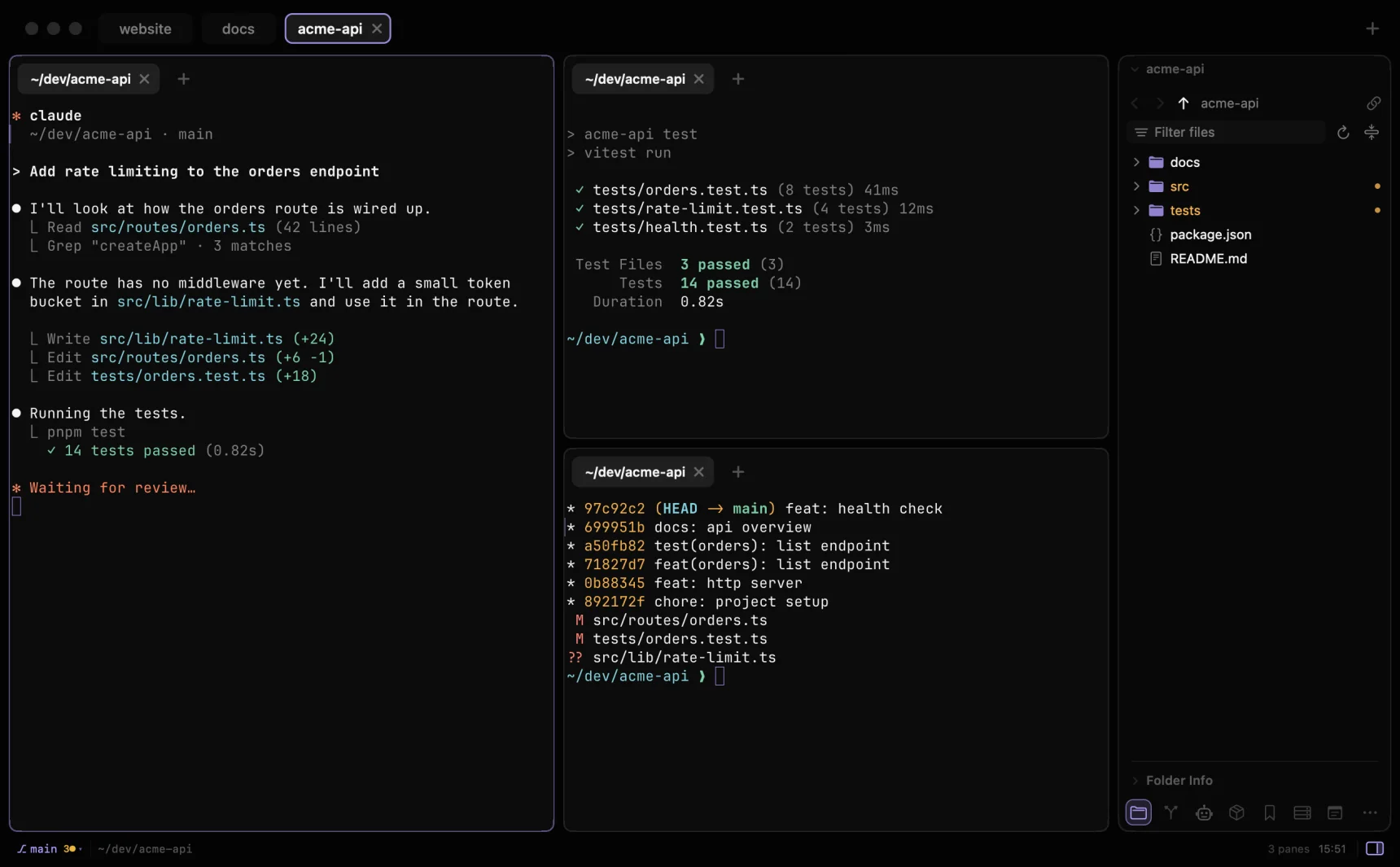
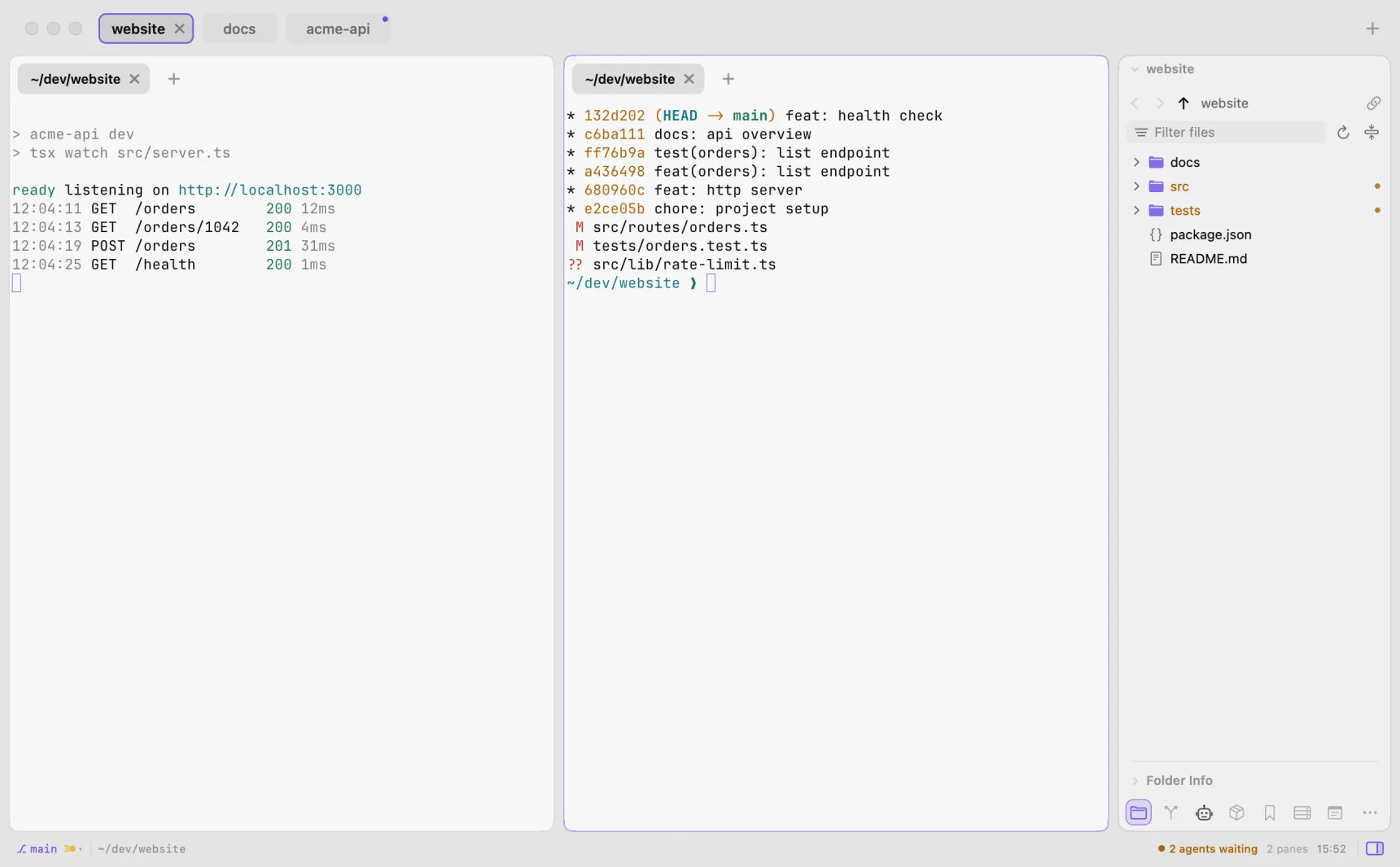
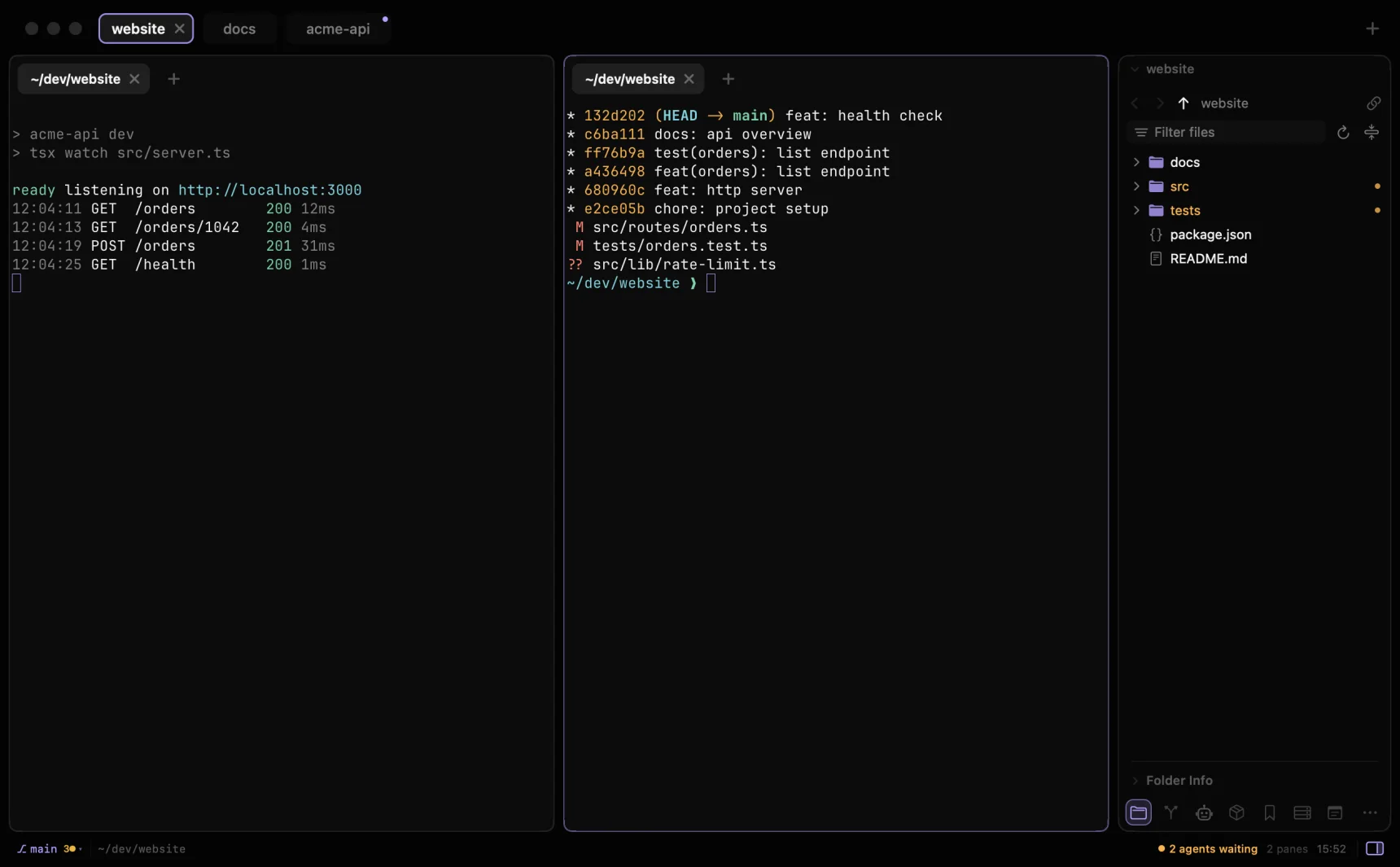
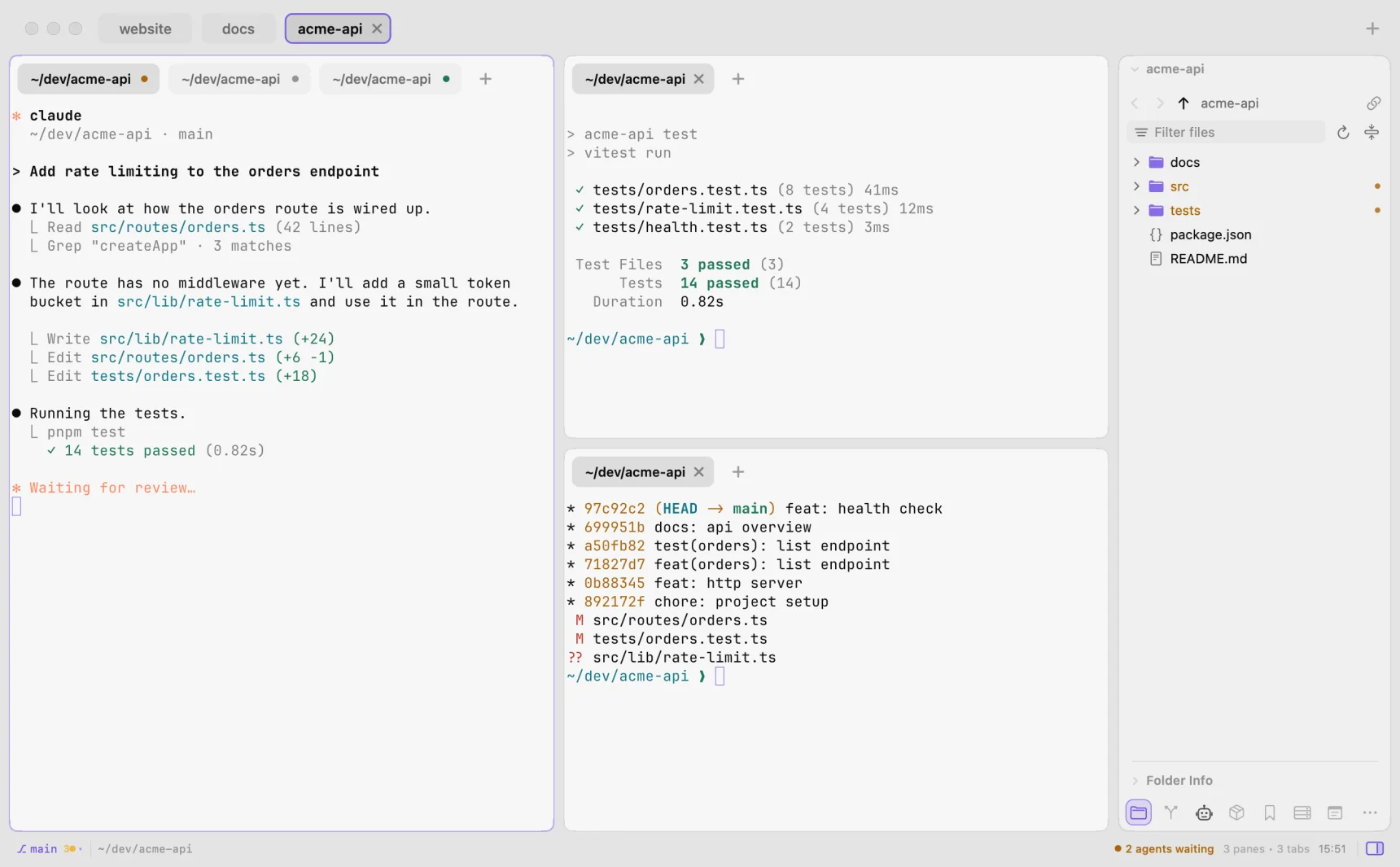
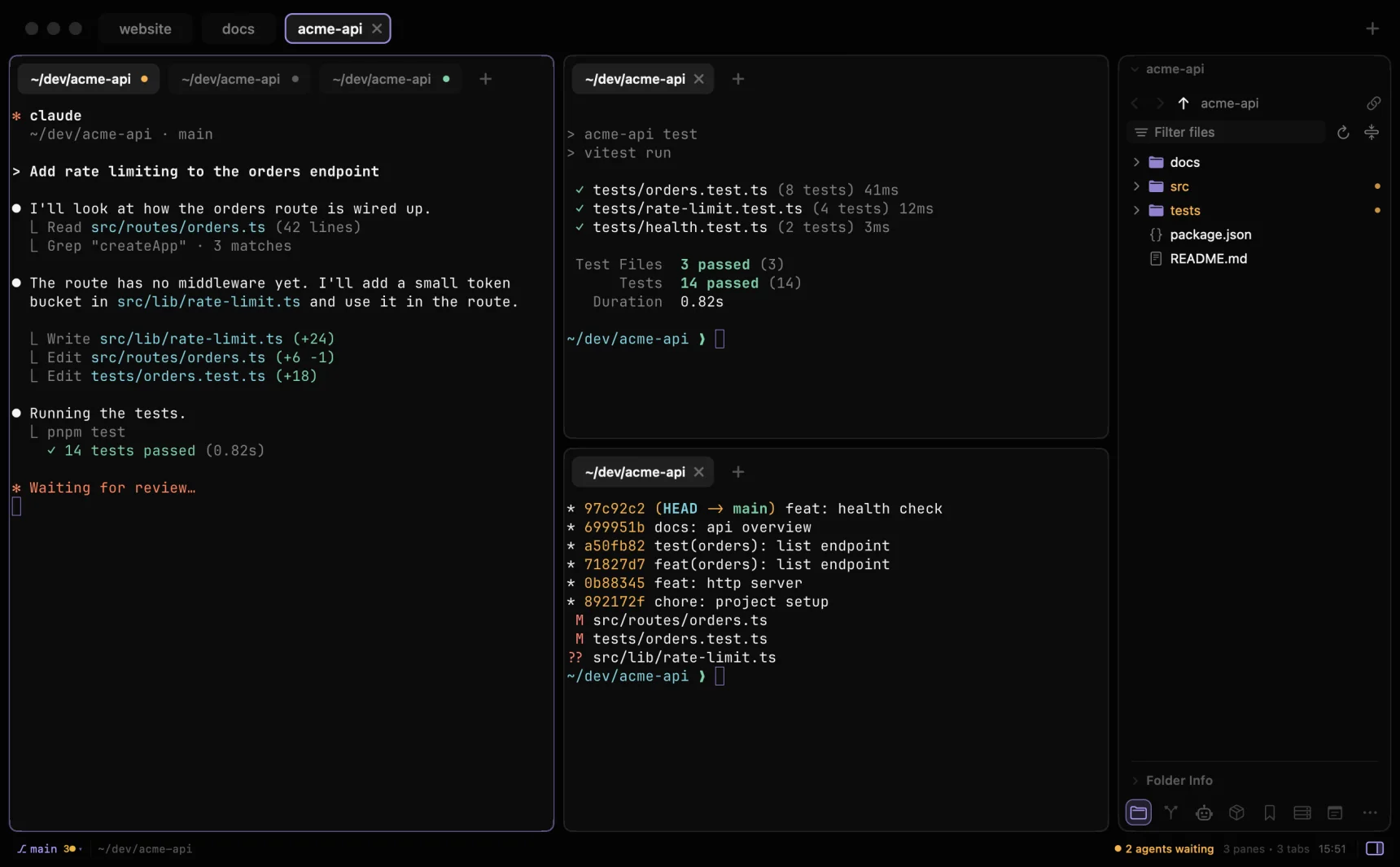
Boo with split panes, a file explorer sidebar and the workspace bar
Workspaces, panes, tabs

Every project gets its own room

Open a folder as a workspace with its own color, file tree and layout. Split in any direction, give each pane its own tab bar, and come back tomorrow to exactly where you left off.

  • Splits everywhere — ⌘D right, ⇧⌘D down, zoom, swap, equalize, or drag a tab onto a pane edge
  • Tab groups & vertical tabs — colored, collapsible groups; tabs in a column with agent status per row
  • Workspace groups — collapse related workspaces into one pill; color new ones by project
  • Session & scrollback restore — layouts, ratios, tab folders and colored scrollback survive a restart
  • Recipes — save a layout with commands as JSON and reopen it in one go
  • Multiple windows — tear tabs off, move workspaces, merge everything back
Windows & splits →
Boo with tab groups and several split panesBoo with tab groups and several split panes
Multi-content tabs

A tab doesn't have to be a terminal

Browser, code editor, image viewer, markdown preview and recording player live in the same tab bars as your shells. Open the dev server next to the logs, the README next to the code.

  • Browser tabs — ⇧⌘T, or ⌘-click any URL in the terminal
  • Editor — CodeMirror with autosave, format on save, encoding and line-ending info, reload on disk change
  • Markdown & images — rendered previews, or images inline via the Kitty graphics protocol
  • Progress bars — OSC 9;4 progress shows on the tab, the workspace pill and the Dock icon
Multi-content tabs →
A pane with a terminal, a browser tab and a markdown preview tabA pane with a terminal, a browser tab and a markdown preview tab
File explorer & git

Your files, even over SSH

A live file tree follows the active terminal: local folders through FSEvents, and remote shells by reusing the connection you already opened.

  • Remote browsing — SSH, Mosh, docker, podman, kubectl, lxc, lima, colima, distrobox, vagrant, adb and more
  • Git status — VS Code–style badges rolled up to folders, ignored files dimmed
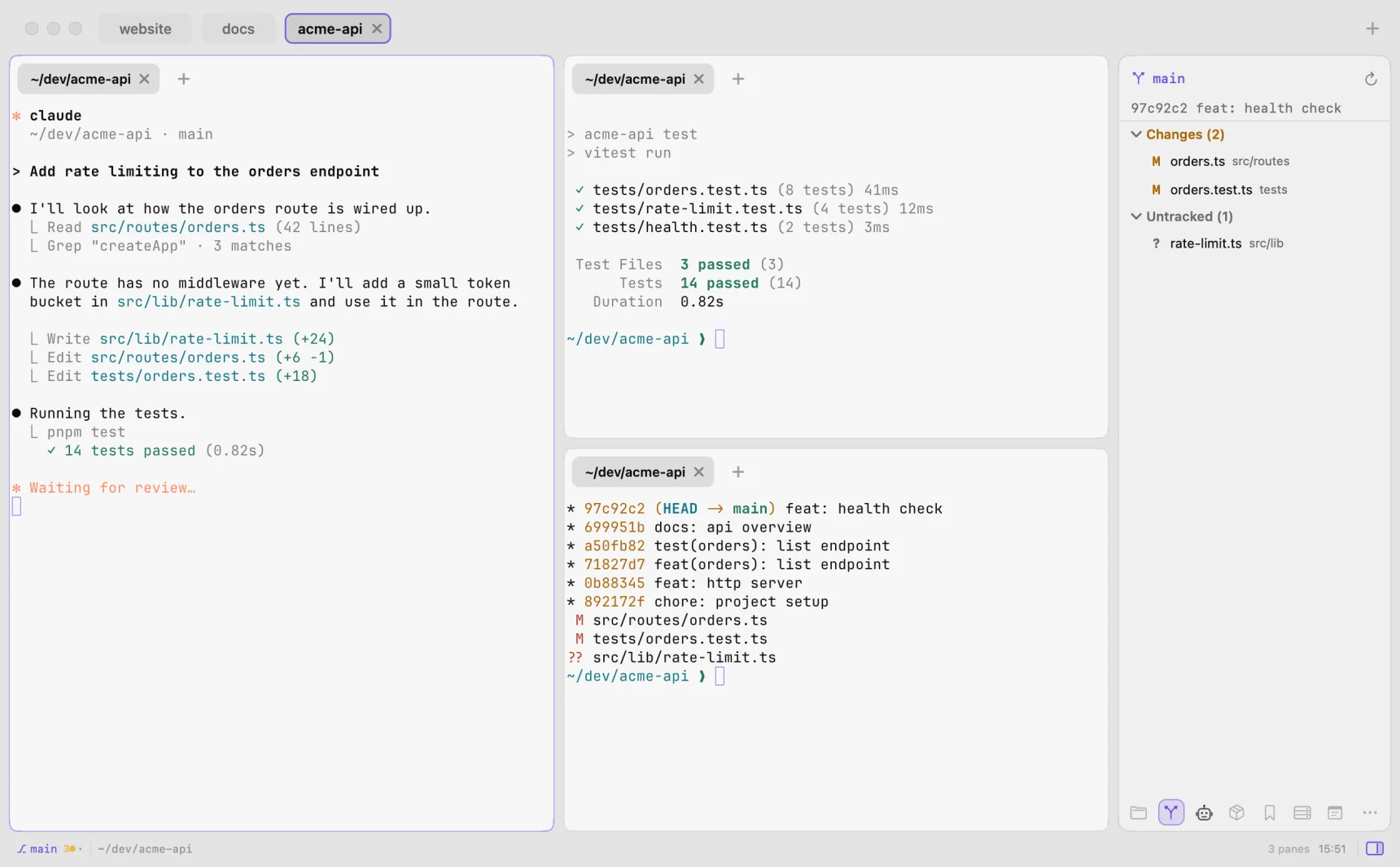
  • Git sidebar — staged, unstaged and untracked files with inline stage/unstage; branch switcher in the status bar
  • Keyboard first — fuzzy filter with /, multi-select, rename, trash, type-ahead
Remote sessions →
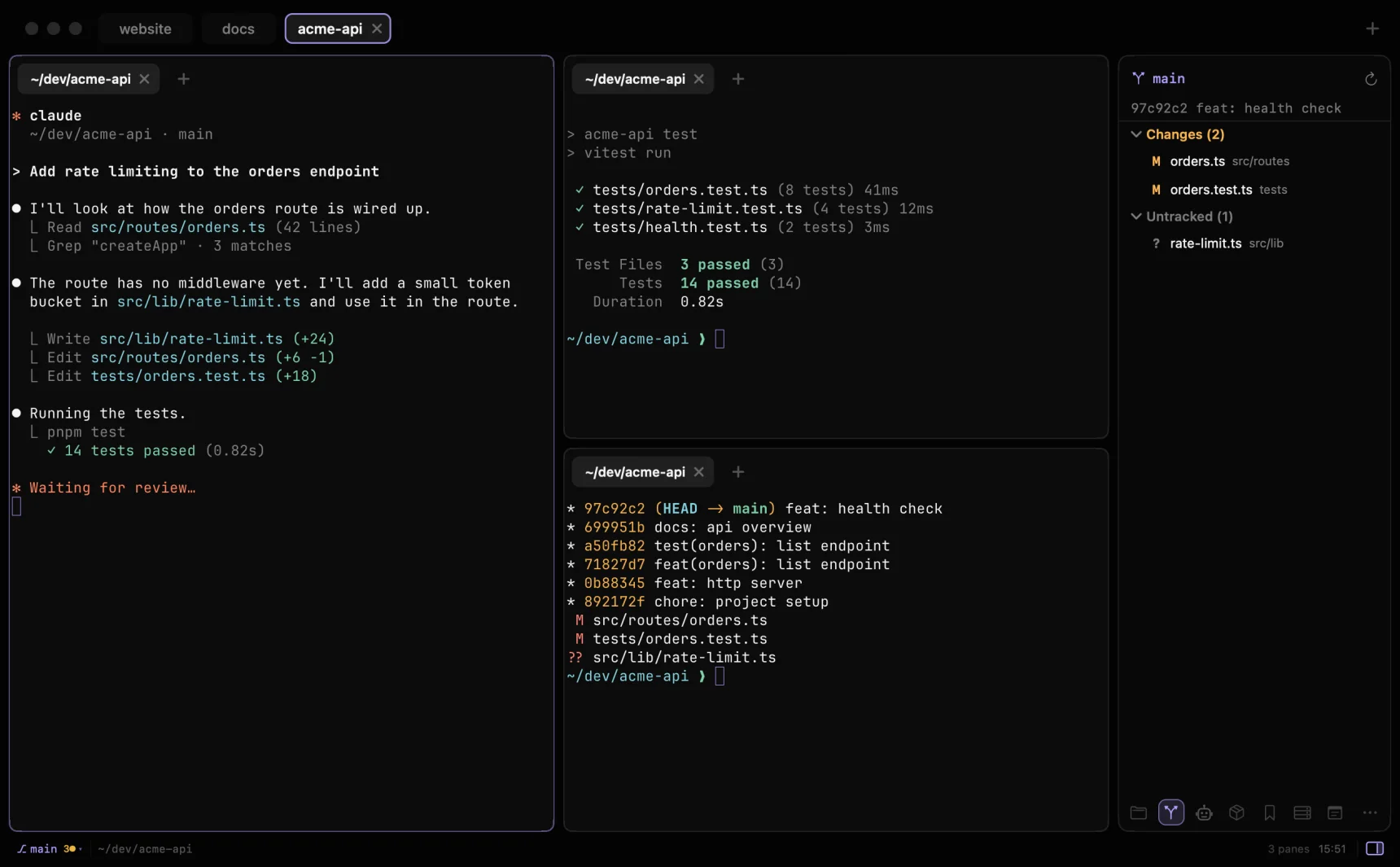
Boo showing a git diff and the Git sidebarBoo showing a git diff and the Git sidebar
Agents

Run Claude Code, Codex, OpenCode and more side by side

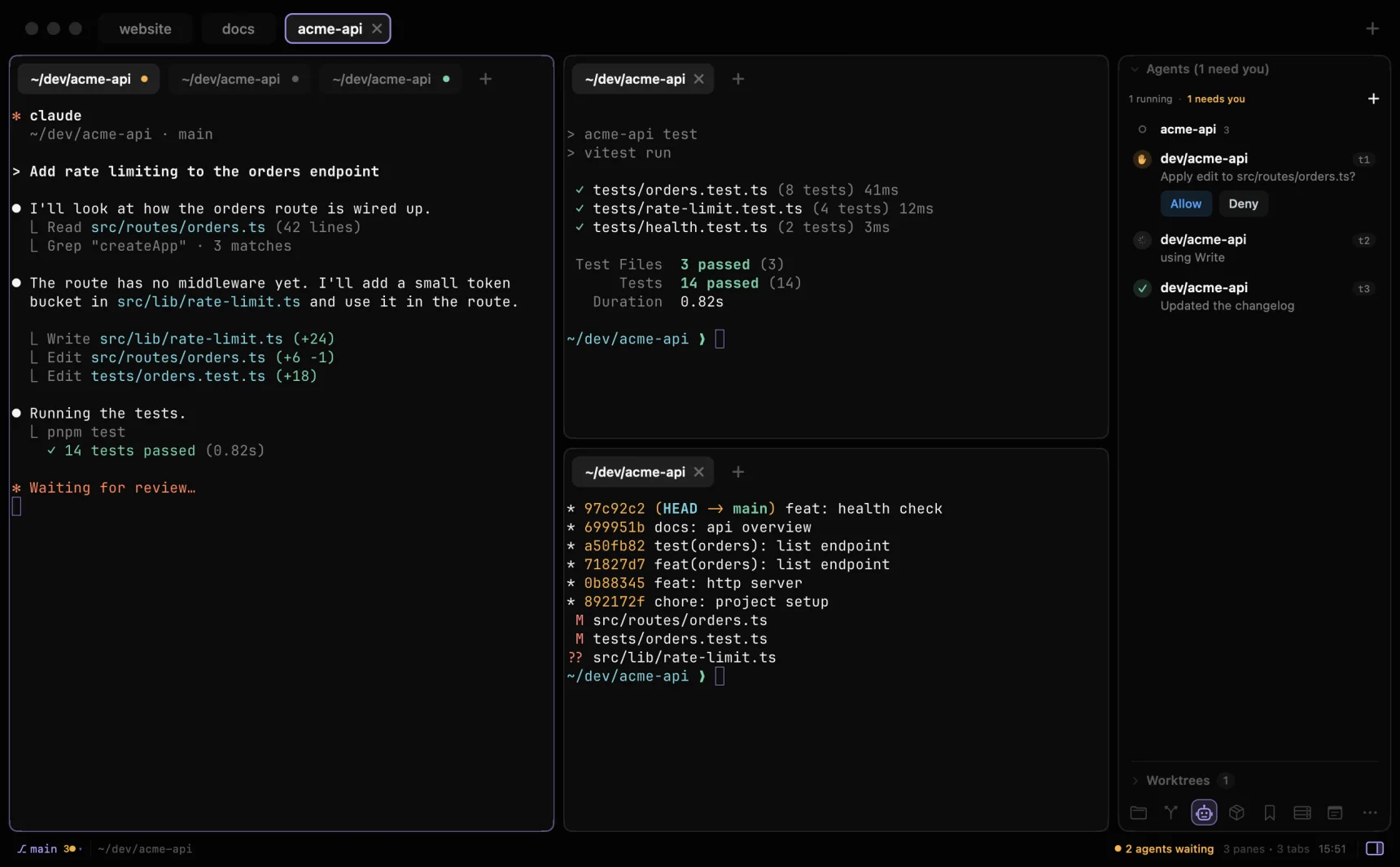
Boo tracks Claude Code, Codex, OpenCode, GitHub Copilot CLI, pi and Hermes. It knows which of your terminals run a coding agent and what each one is doing — across every window. It tells you who needs you, gives each task its own worktree, and lets you review the result before you merge.

Agent inbox

One list of every agent, summed up in the status bar and colored by state. ⇧⌘J jumps to the next agent waiting for input; a notification arrives when one finishes in a tab you're not looking at.

● needs input ● working ● done ● failed
  • Agents sidebar — open sessions, changed files with diff stats, worktrees, config and skills
  • Send to agent — ⌥⌘↩ hands the selection or last command's output to the nearest agent
  • Works remotely — agents behind ssh or mosh are tracked from their title and bell
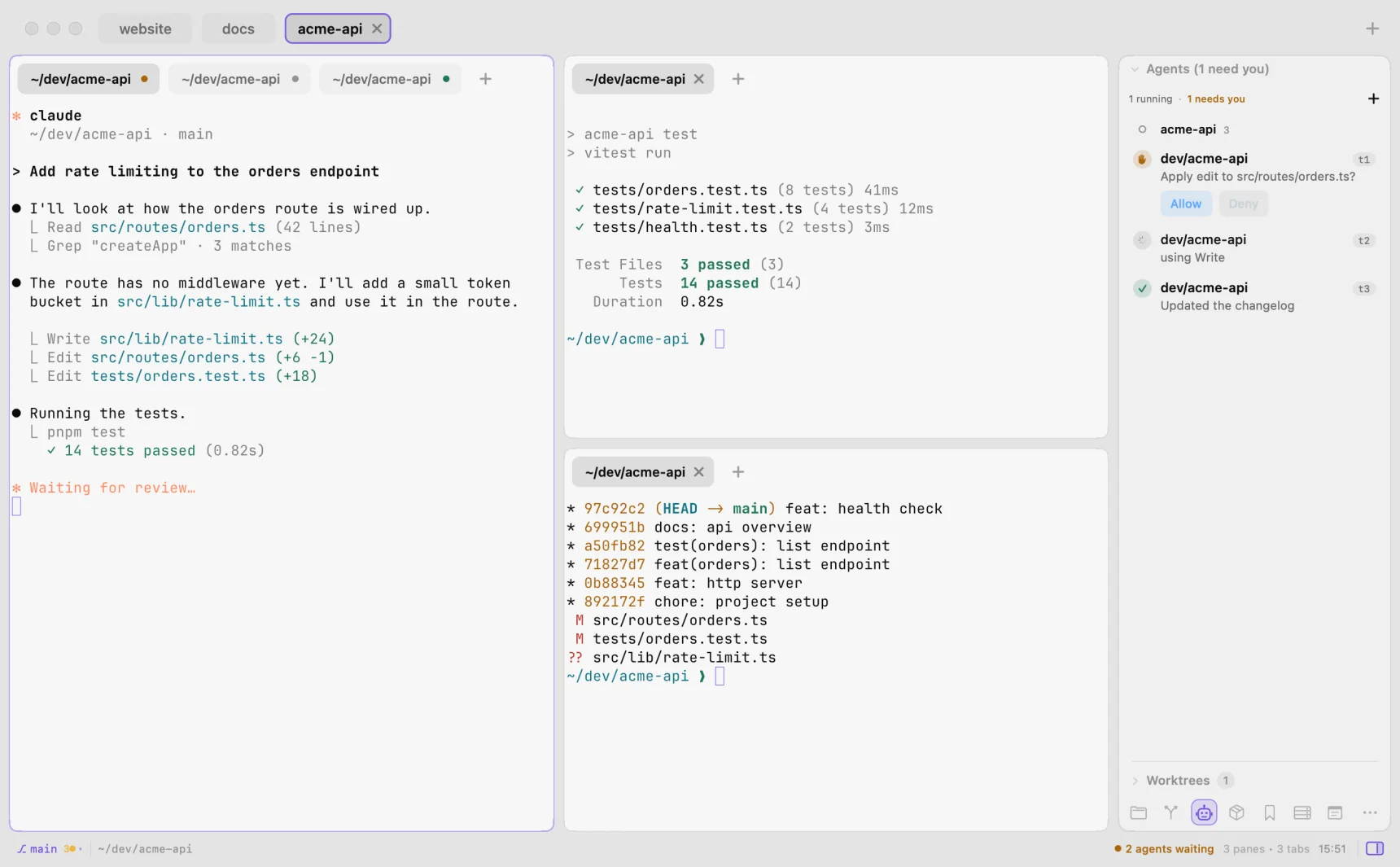
The agent inbox with several Claude Code sessions in different statesThe agent inbox with several Claude Code sessions in different states
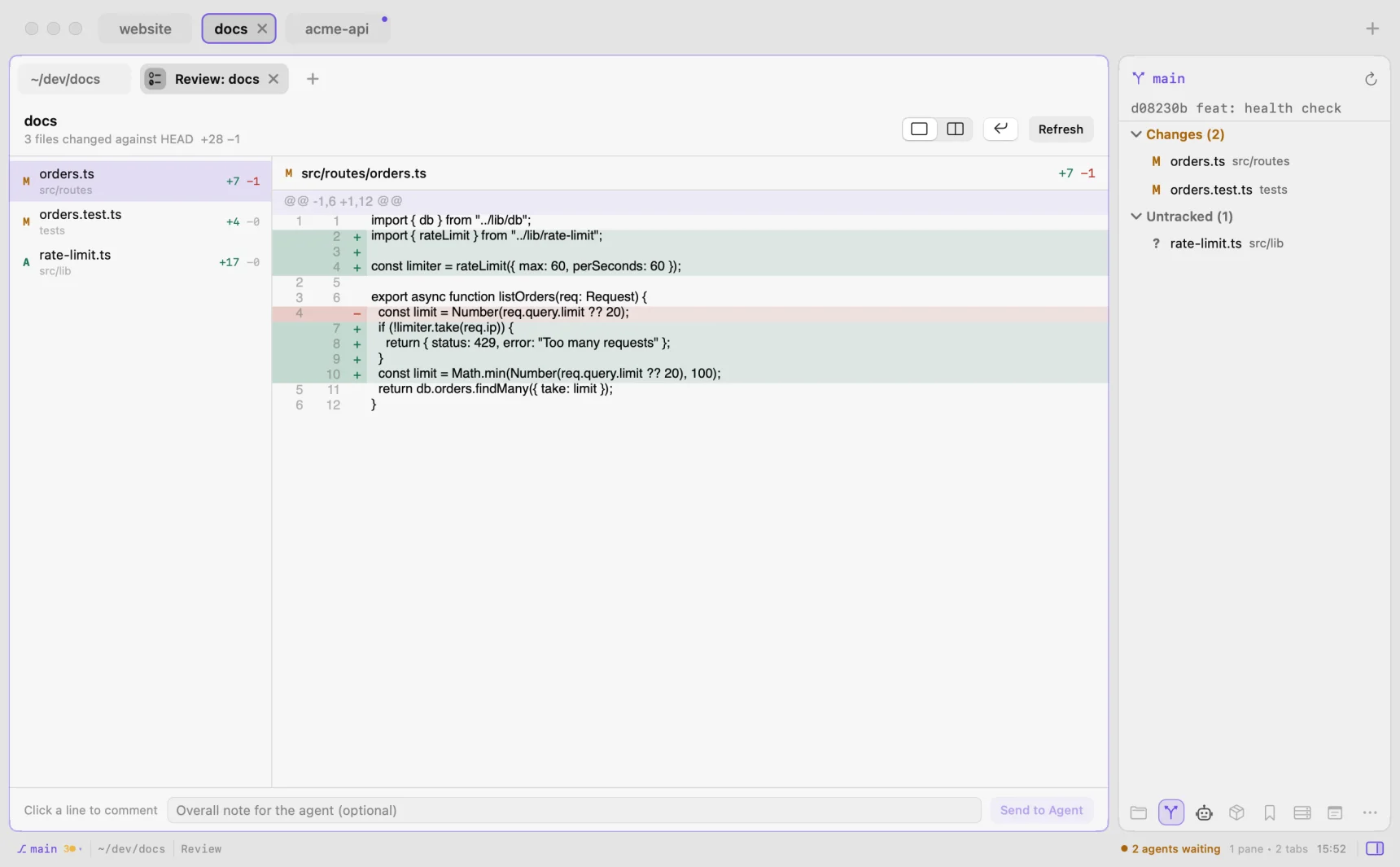
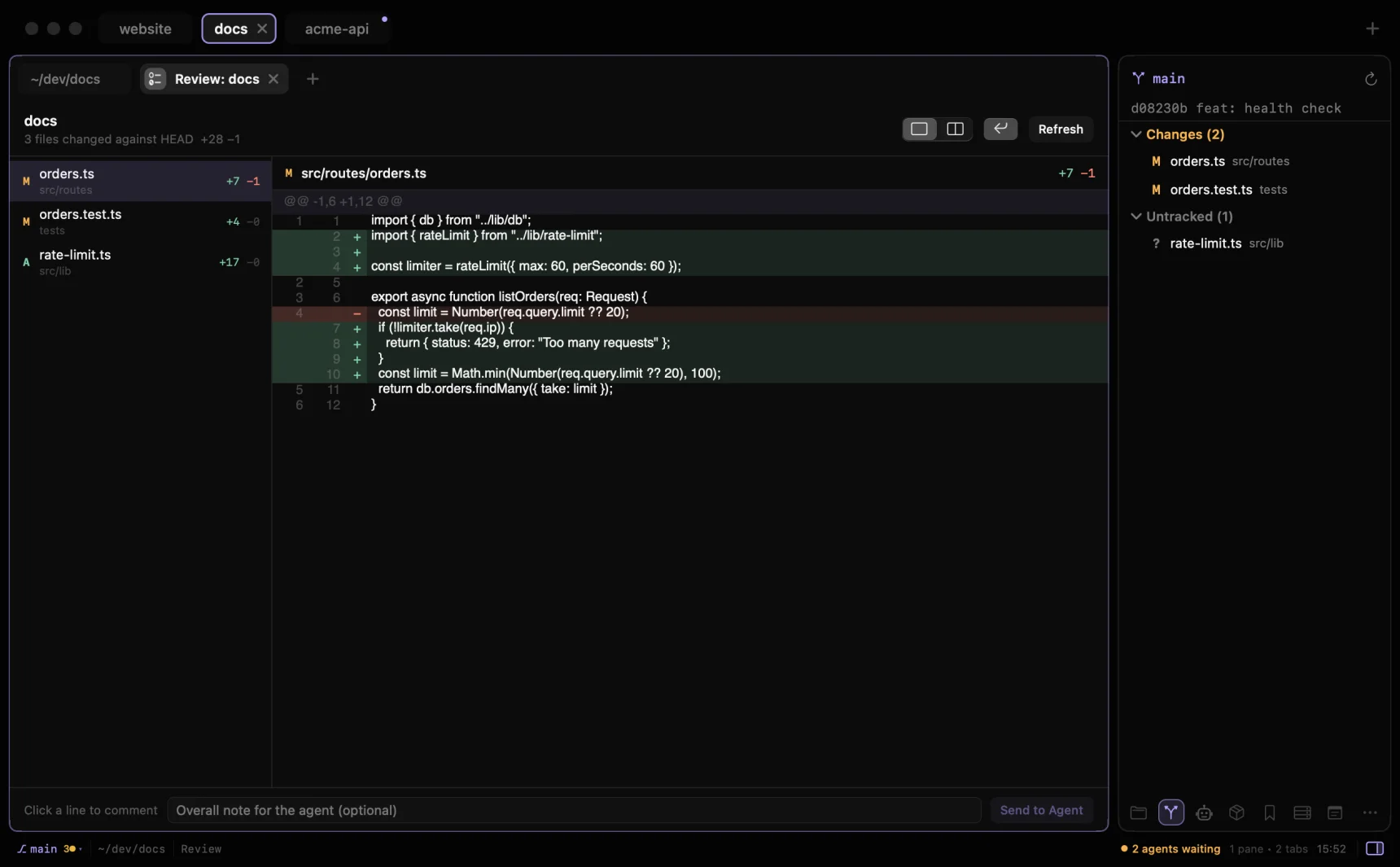
Review tab with inline comments on a diffReview tab with inline comments on a diff

Worktree tasks & review

File → New Agent Task… starts an agent on its own boo/<task> branch and worktree. Review the diff, comment on lines, send feedback with ⌘↩, then merge or discard.

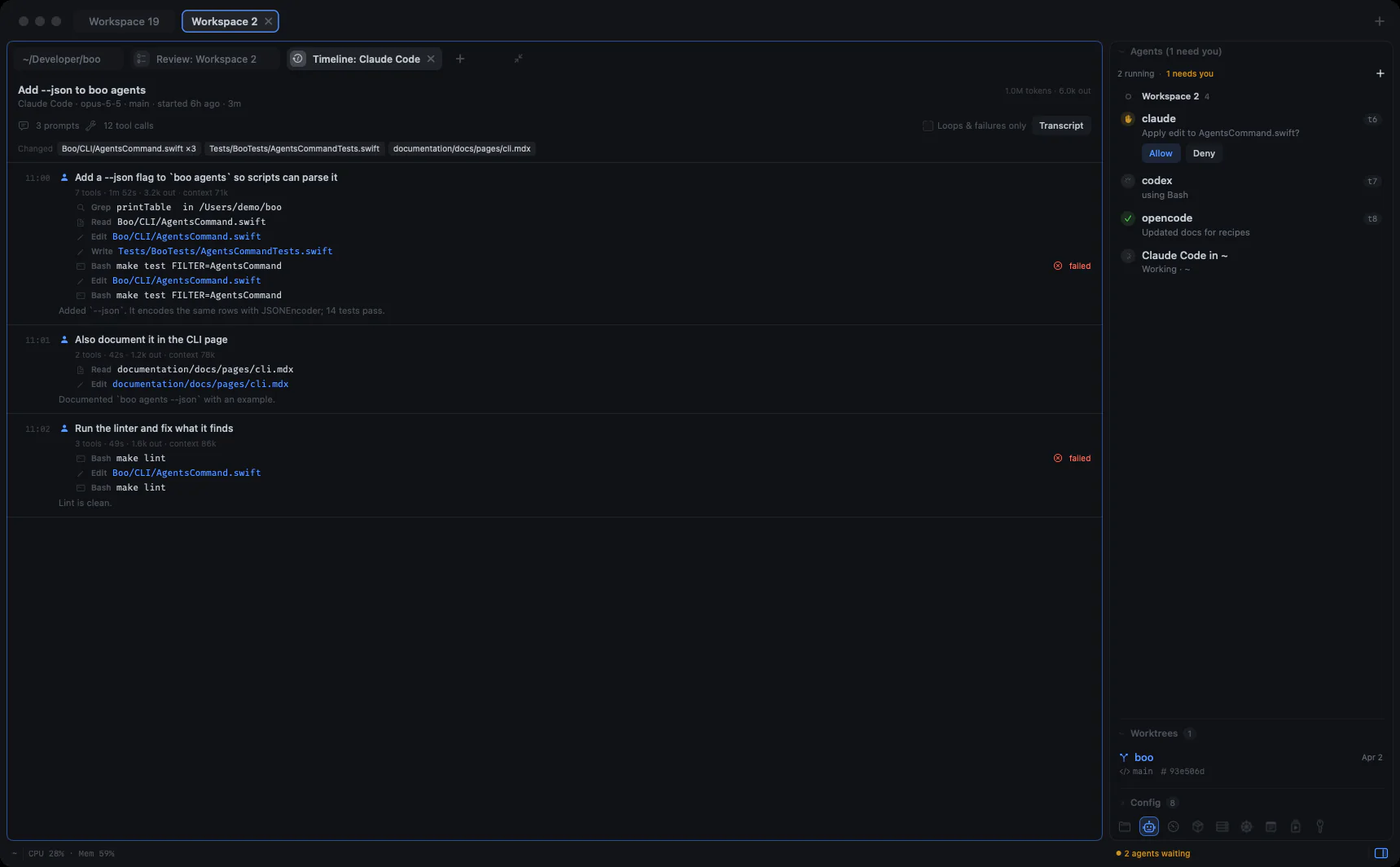
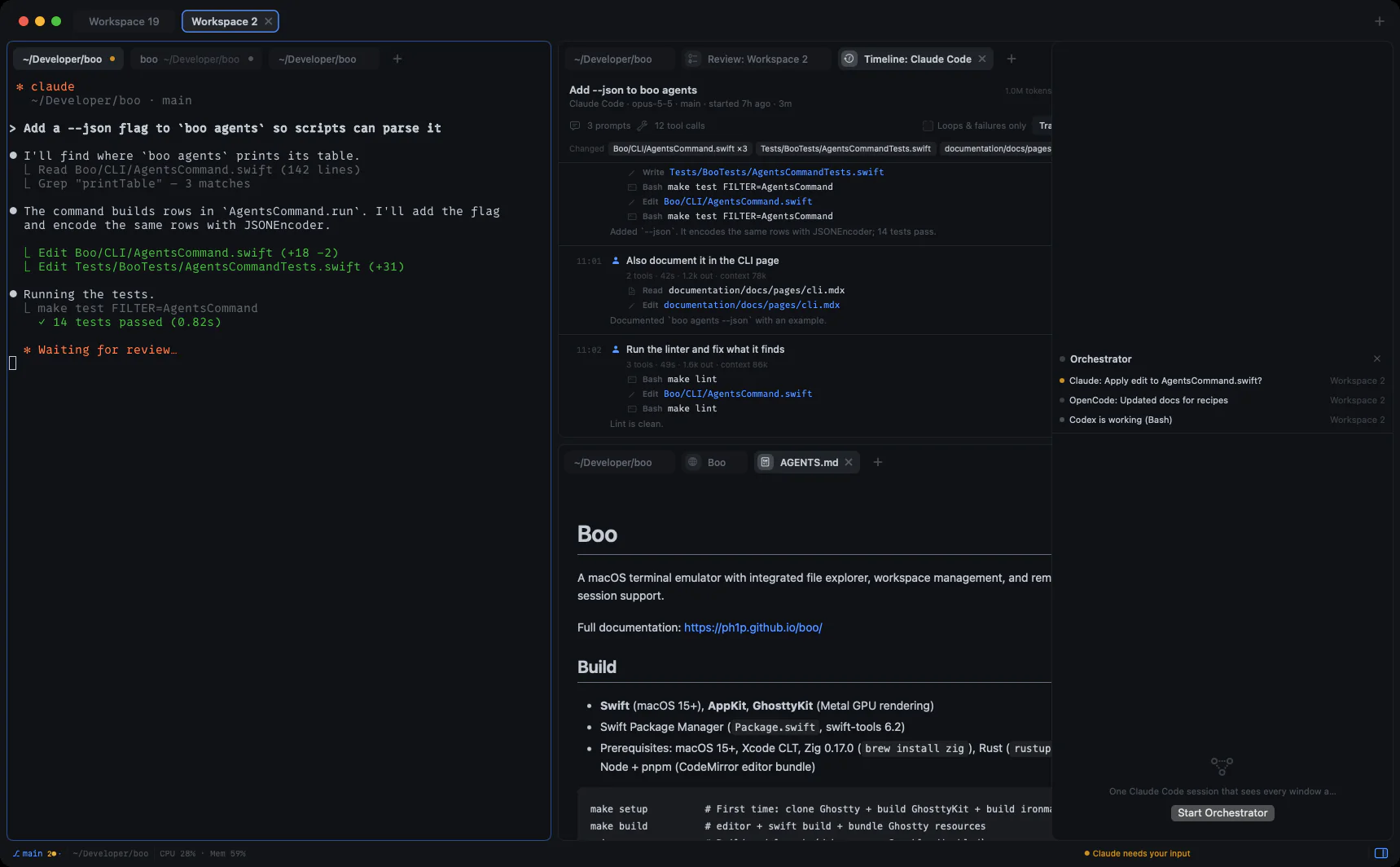
Agent timeline with prompts, tool calls, tokens and cost

Timeline & cost

Replay a Claude Code session: every prompt, tool call, duration, token count and cost, plus the files it edited. Repeated calls are folded so loops stand out.

The orchestrator drawer listing agents that need input

Orchestrator

One Claude Code session that sees every agent (⌥⌘O). It answers waiting agents, splits work into parallel tasks and merges them — anything risky waits on an approval card.

Agents that arrange their own workspace

Boo ships an MCP server and a boo CLI. An agent can open a pane for the dev server, read the test output next door, start helpers in their own worktrees and open the review for you — and it never types into its own pane.

Agents guide →
# register once
❯ claude mcp add -s user boo -- ~/.boo/shell-integration/boo-mcp

# from inside an agent: start a helper on its own branch
❯ boo run "add tests for the parser"
  ↳ new tab on its own git worktree and branch
❯ boo agents
❯ boo wait t2
❯ boo diff t2 && boo merge t2
Command palette

Everything is one keystroke away

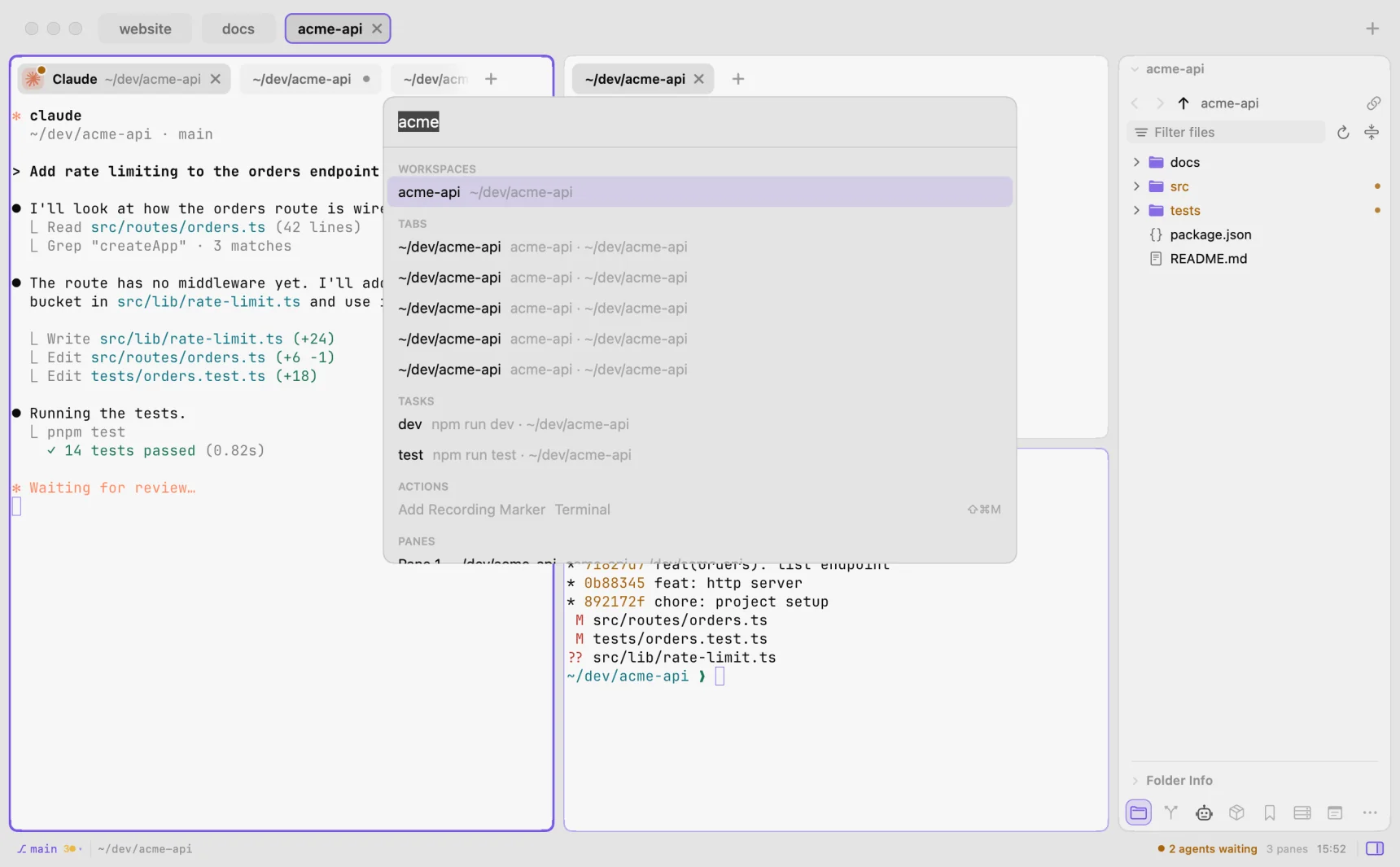
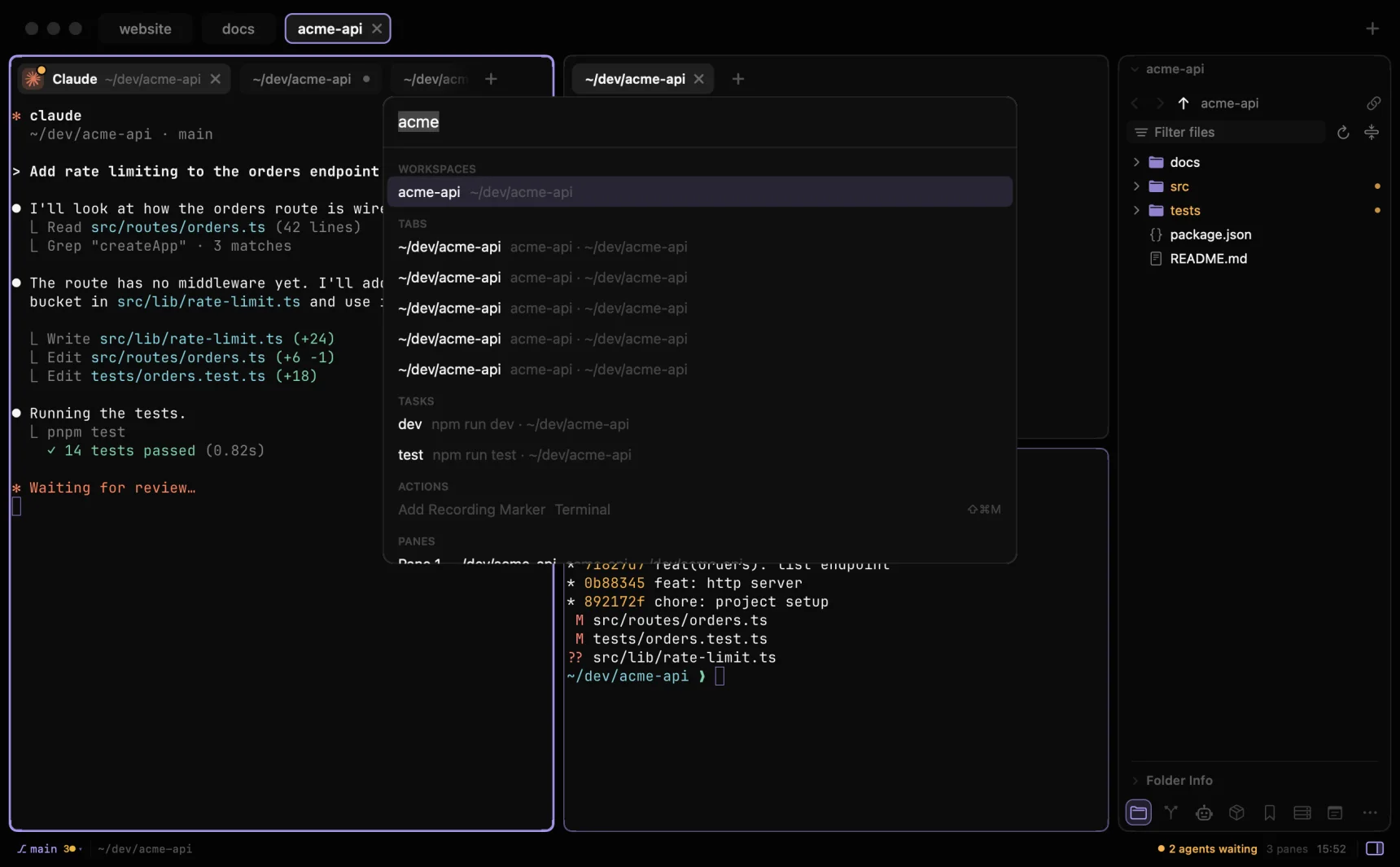
⇧⌘P searches every menu command, workspace and tab of every window, bookmarks, SSH hosts, themes, profiles and recipes. Matching is fuzzy and recent picks rank higher.

  • Prefixes — > commands, @ workspaces, @ssh hosts, @op 1Password, @tmux sessions, # tabs, % panes, : themes and profiles, ! history
  • Live theme preview — highlight a theme to try it, Esc to revert
  • Every shortcut rebindable — and they work on non-US layouts like QWERTZ
Keyboard shortcuts →
The command paletteThe command palette
Terminal tools

A terminal that understands its output

Shell integration marks every prompt, so Boo knows where each command and its output start and end.

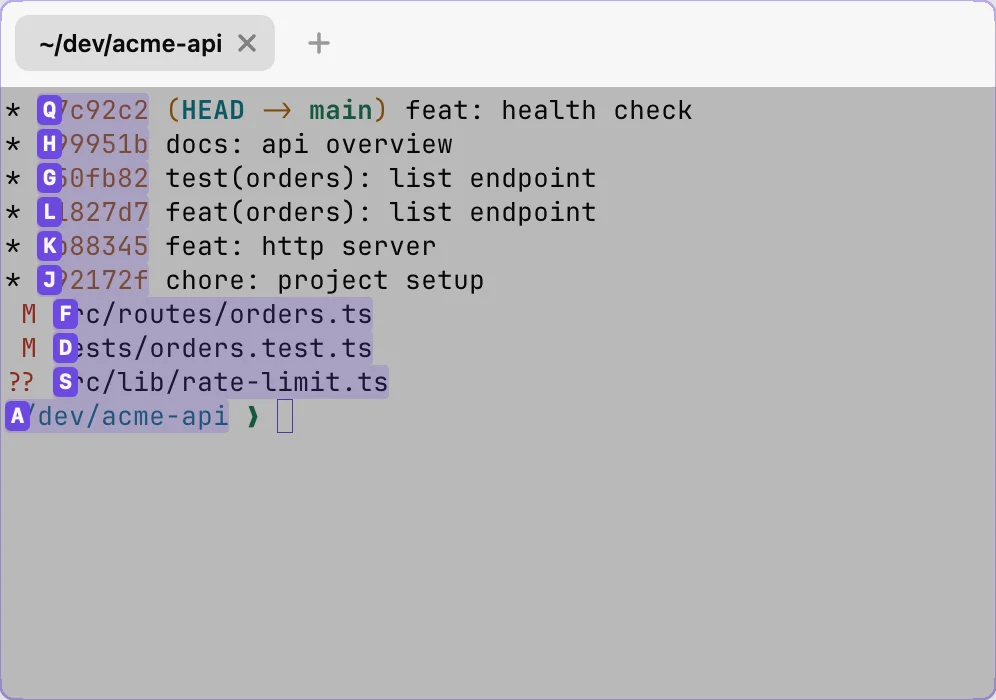
Quick select labels on URLs, paths and hashesQuick select labels on URLs, paths and hashes

Quick select

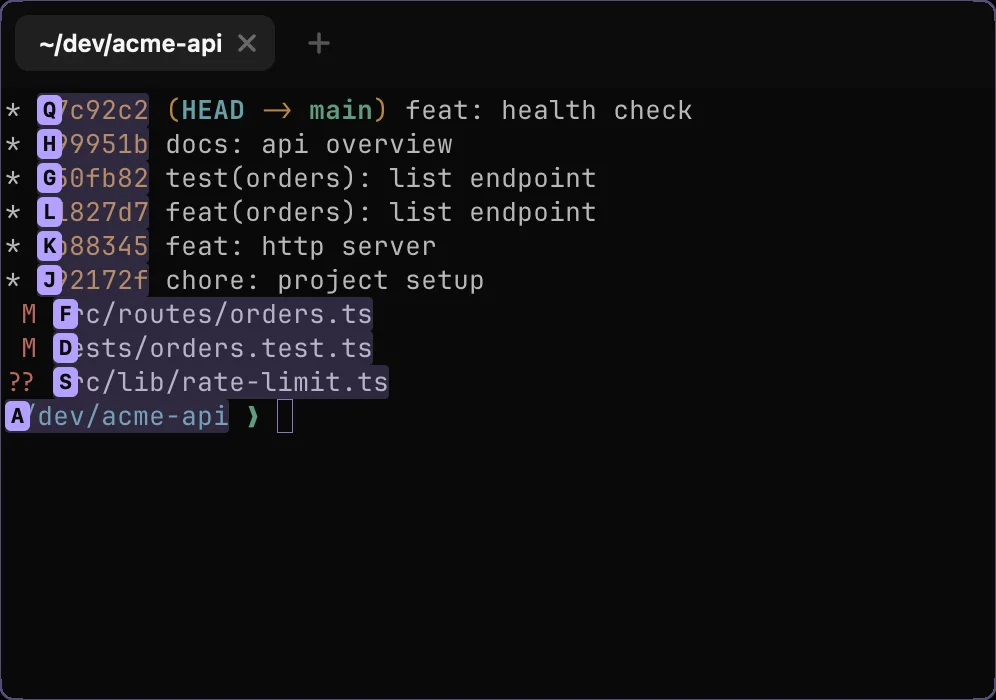
⇧⌘Space labels every URL, path, git hash, IP and UUID on screen. Type the label to copy, with ⇧ to paste at the prompt.

Command blocks

Gutter marks per prompt (red when it failed), jump with ⌘↑/⌘↓, right-click to copy a command's output, re-run it or send it to an agent.

Copy mode

⇧⌘C puts a keyboard cursor on the scrollback. Move with vi keys, select with v/V, yank with y.

Quick terminal

⌥Space from any app drops a terminal from the top of the screen, with its own tabs that keep running while hidden.

Broadcast input

Type once into every pane of a workspace, or ⌘-click to pick panes. Panes running an agent never receive it.

History everywhere

⌃R searches every command you ran in Boo — across tabs, windows and hosts — with folder, exit code and duration.

Session recording

Record a pane. Export an MP4.

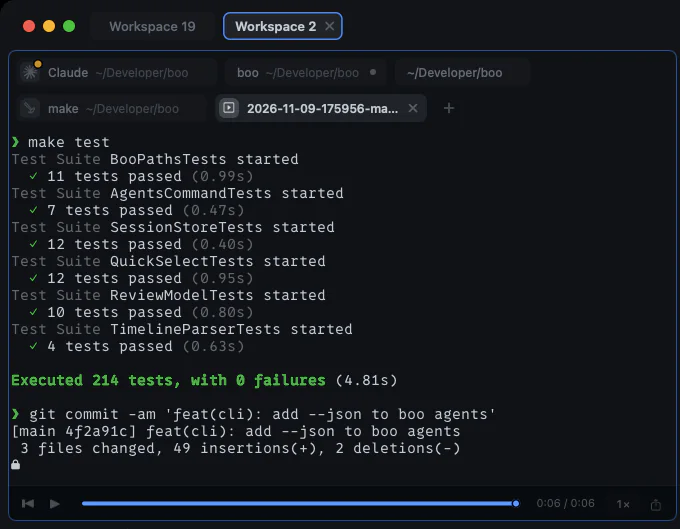
Record one pane or all of them as asciicast files — output only, never keystrokes. Drop chapter markers with ⇧⌘M, play recordings back in a tab, and render them to H.264 video in your theme and font, faster than real time.

  • Player — seek, speed from 0.25× to 4×, jump between markers
  • Idle trimming — long pauses are shortened on playback
  • Library — rename, export, reveal and trash recordings from Settings
Recording →
The recording player tab
tmux

tmux sessions as native panes

Run tmux -CC and each tmux window becomes a Boo workspace, each tmux pane a Boo pane. Focus, zoom, rename and reorder stay in sync both ways — also with other attached clients.

  • Session chip — open hidden windows, switch sessions, run any tmux command
  • Clipboard — tmux buffers land on the macOS clipboard
  • Reattach on launch — sessions attached at quit open again
tmux →
❯ ssh build-box
build-box ❯ tmux -CC attach -t work
  ↳ 3 tmux windows → 3 Boo workspaces
  ↳ 5 tmux panes   → 5 native Boo panes
  ✓ scrollback, focus and zoom in sync
Themes & appearance

The whole UI follows your theme

12 curated themes, plus every theme Ghostty ships, restyle the terminal and all the chrome around it. Boo generates the interface colors from the terminal palette, so any theme looks finished. Edit a theme and watch the app change live, or import one from iTerm2 or Ghostty.

  • Generated chrome — sidebar, tabs and status bar built from your palette, with three contrast levels
  • Theme editor — change a color and the whole app follows live
  • Shaders — Ghostty shaders per tab, like a CRT look for demos
  • Settings search — find any option by what it does
Theming →
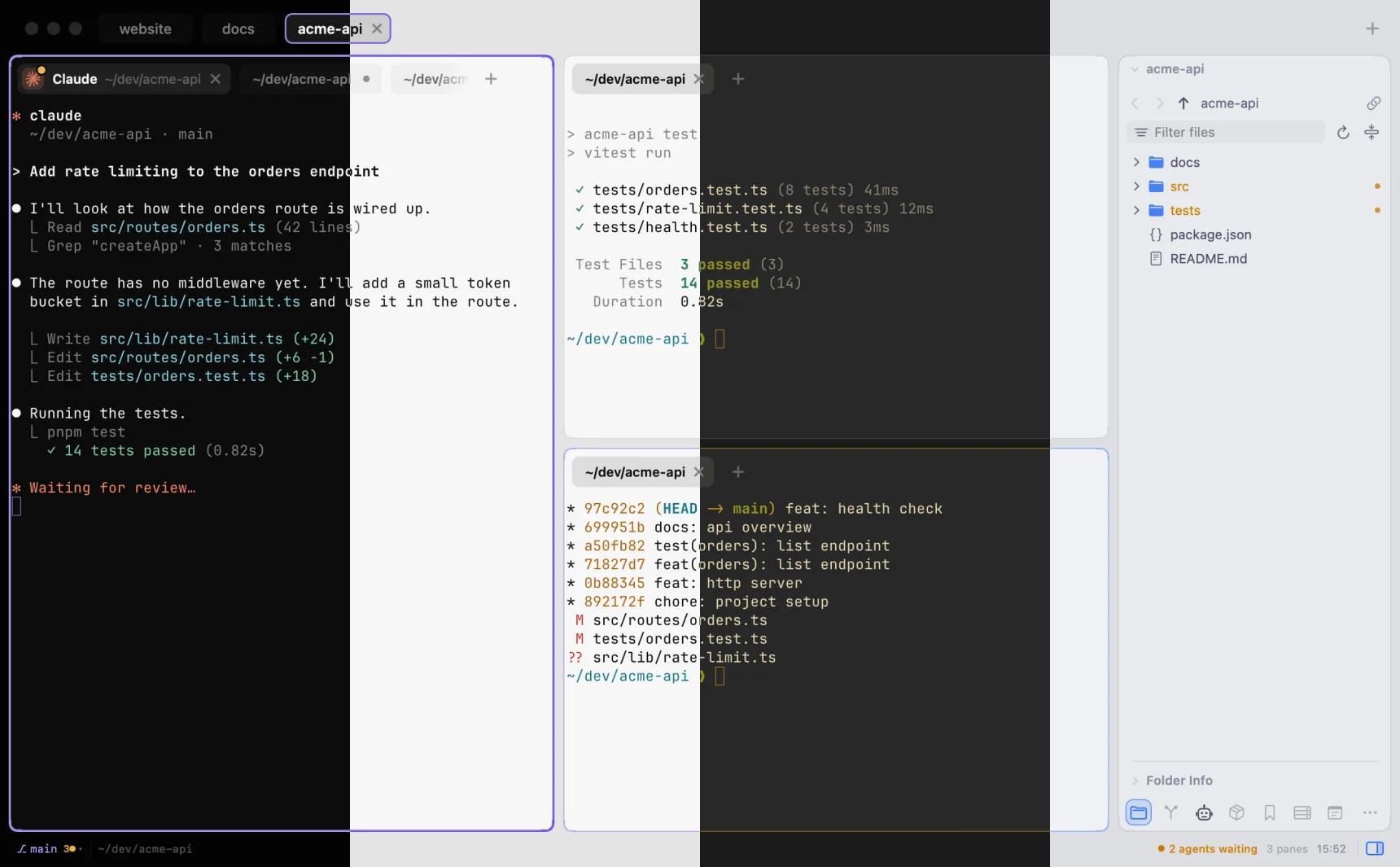
The same window in four themes
Rules & profiles

Production looks like production

A profile is a set of overrides — theme, font, shader, shell, environment. A rule applies one by host, folder, container, kube context or process, or runs an action when output matches a regex.

Rules & profiles →
// ~/.boo/profiles.json
{
  "profiles": [{
    "name": "Production",
    "theme": "Gruvbox Dark",
    "env": { "AWS_PROFILE": "prod" }
  }]
}
// rule: ssh host prod-* → profile "Production"
Sidebar plugins

A sidebar that knows your stack

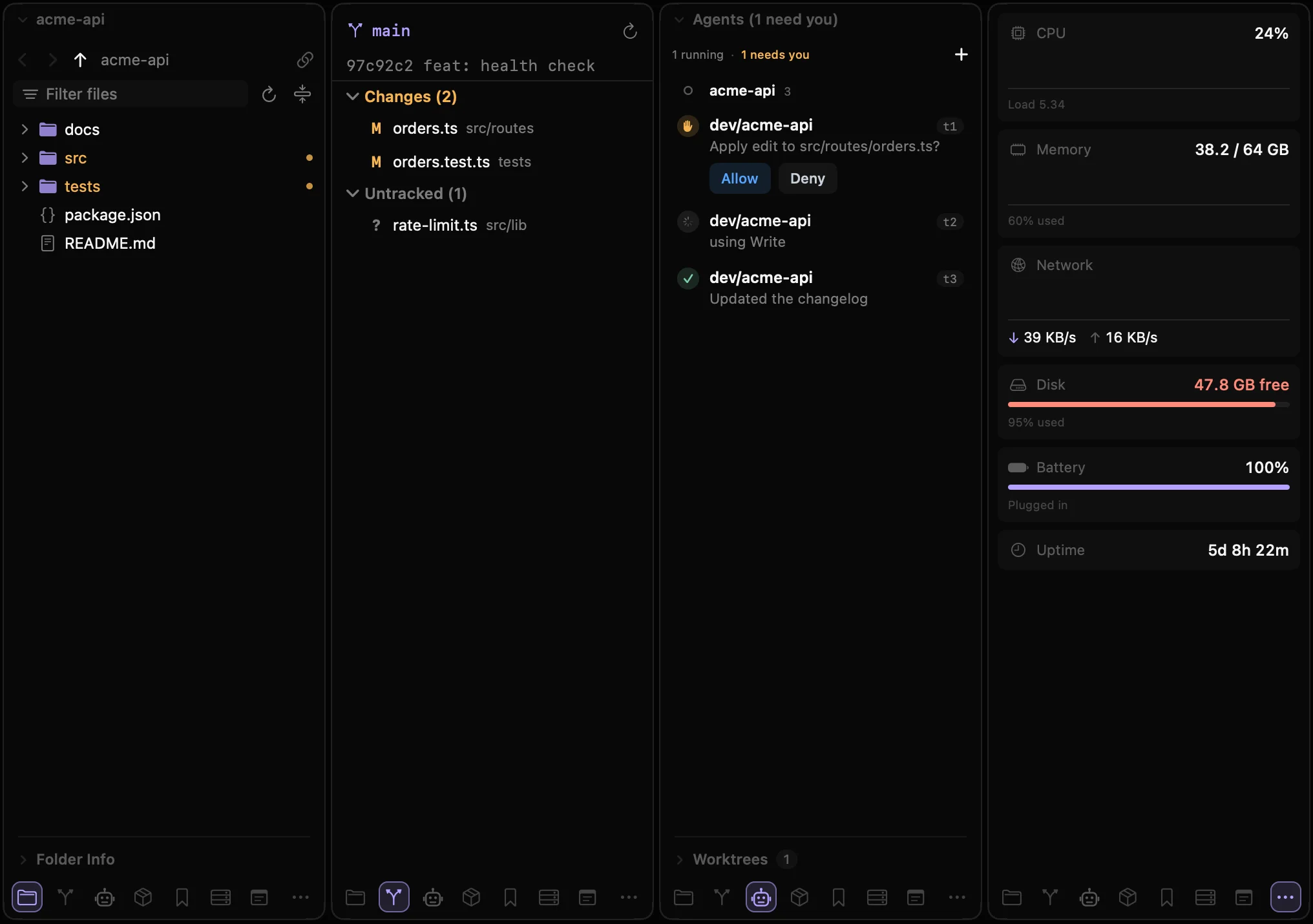
Thirteen built-in plugins sit in stacked, collapsible panels next to the terminal. Each one shows up only where it makes sense — Git in a repo, Docker on your Mac, Files over SSH — and you turn each one on or off in Settings.

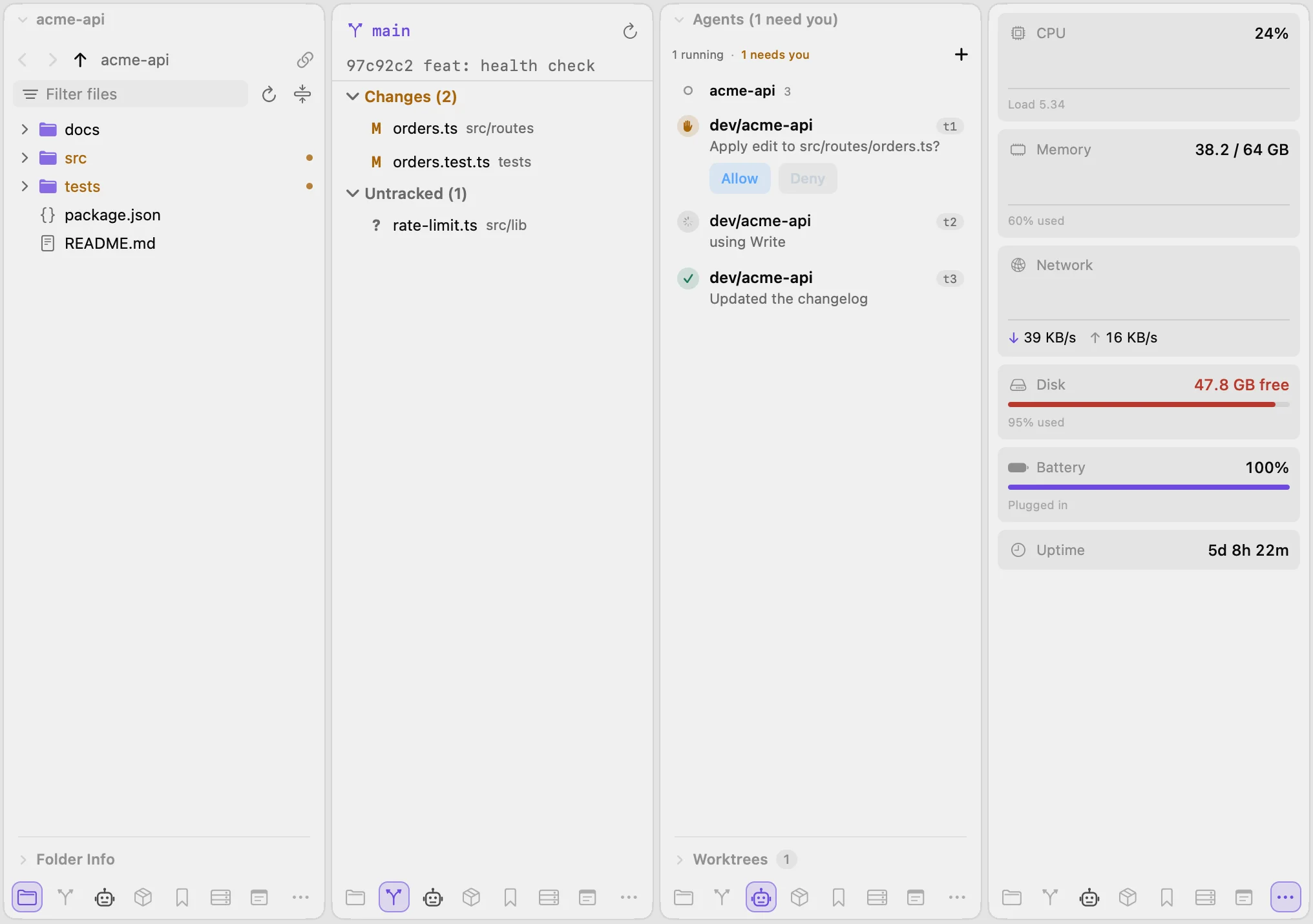
Sidebar plugins: file explorer, Git, System and TasksSidebar plugins: file explorer, Git, System and Tasks
Files

Live tree, local via FSEvents or remote over SSH and Mosh

Git

Branch, ahead/behind, stage and unstage inline

Agents

Sessions, changed files, worktrees, config and skills

Tasks

Run package.json scripts, make, just, cargo and swift tasks

Docker

Containers with exec, logs, start, stop and restart

Kubernetes

Pods, workloads, jobs, services, logs and port-forwards

Hosts

Your ~/.ssh/config, one click to connect

1Password

Search items, copy or type secrets, insert op:// references

Bookmarks

Saved folders per host, ⌃1–⌃9 to jump

Notes

A markdown note per workspace

Snippets

Saved commands to paste at the prompt

System

CPU, memory, disk, battery, plus status bar readouts

Write your own

A plugin is two files of JavaScript

Drop a plugin.json and a main.js into ~/.boo/plugins/<name>/. No build step, no Node, no npm — scripts run in JavaScriptCore, and Boo reloads the plugin the moment you save.

  • Declarative UI — return stacks, labels, lists, buttons and badges from render(ctx); tints follow the theme
  • Real context — folder, git branch and changes, running process, remote host and settings arrive in ctx
  • Actions — exec, paste, cd, newTab, newPane, open, copy, notification and more
  • Hooks into Boo — status bar segments, a settings page, items in the Plugins menu with their own shortcuts
  • Scoped by when — env.local, git.active, process.name… decide where the panel appears
Plugin development guide →
// ~/.boo/plugins/make-targets/plugin.json
{
  "id": "make-targets",
  "name": "Make Targets",
  "version": "1.0.0",
  "icon": "hammer",
  "when": "env.local",
  "runtime": "js",
  "capabilities": { "sidebarTab": true },
  "statusBar": { "position": "left", "template": "make" }
}
Examples in examples/plugins
hello-worldthe smallest plugin, two files
make-targetsMakefile targets, click to run
project-infodetects the project type and its key files
node-projectscripts, dependencies and quick actions
terminal-inspectorcontext fields, settings and actions

Hot reload

Save the file and the panel updates. No restart, no build.

Fails safely

If render throws, the panel shows the error; after one second, a timeout.

Settings

Toggles, sliders and pickers in Settings → Plugins, read from ctx.settings.

Or go native

Built-ins are Swift plugins with full SwiftUI and AppKit, behind the same protocol.

Recipes

Your whole dev setup, one click away

A recipe is a workspace you can open again: a folder plus a layout of panes, each tab starting in its own directory and running its own command. Save the current workspace as a recipe, then reopen it from the menu, the palette, the socket or MCP.

  • Plain JSON in ~/.boo/recipes/, synced with your other settings
  • Nested splits with ratios, per-tab cwd, command and env
  • Safe to save — Boo stores your last commands as hints, never runs them unasked
Recipes →
// ~/.boo/recipes/web.json
{
  "name": "web",
  "folder": "~/code/app",
  "layout": {
    "split": "right", "ratio": 0.6,
    "a": { "tabs": [{ "command": "pnpm dev" }, {}] },
    "b": { "split": "down",
      "a": { "tabs": [{ "cwd": "./api", "command": "pnpm test --watch" }] },
      "b": {} }
  }
}
Beyond the window

Drive Boo from anywhere

Remote control

An optional web UI on your LAN: watch every pane update live, type, switch tabs, and approve or deny waiting agents from your phone. Stops itself after 30 minutes idle.

Remote control →

Unix socket

Newline-delimited JSON on ~/.boo/boo.sock: query layout, split panes, send text, read screens, subscribe to events like cmd_ended.

IPC socket →

Settings sync

Keep settings, profiles, rules, themes and recipes the same on every Mac through a shared folder, with conflict detection.

History & sync →

Secure by default

Secure Keyboard Entry, confirmations for risky pastes and clipboard reads, and an owner-only ~/.boo.

Security →

Configurable status bar

Environment, branch, path, process, listening ports with one-click open, kube context, clock — reorder or hide any of them.

Ghostty inside

GPU rendering with Metal, Kitty graphics and keyboard protocols, ligatures — the terminal core is Ghostty.

Ghostty integration →

Keyboard first

Keep your hands on the keys

Every menu command has a shortcut slot you can rebind in Settings. Brackets follow your layout, so on QWERTZ ⌘ö and ⌘ä just work. Prefer tmux habits? Turn on the ⌃A leader key.

All shortcuts and how to rebind them →

FAQ

Questions, answered

How is Boo related to Ghostty?

Boo embeds Ghostty's terminal core through libghostty. Ghostty handles terminal emulation, fonts and Metal rendering; Boo builds the window, workspaces, sidebar, agent tools and everything else around it. Your Ghostty shaders and themes work in Boo.

Which coding agents does it support?

Claude Code, Codex, OpenCode, GitHub Copilot CLI, pi and Hermes are detected out of the box, including when they run behind ssh or mosh. Other AI CLIs show up in the Agents sidebar, and any agent can drive Boo through the MCP server or the boo CLI.

Do I need agents to use Boo?

No. Workspaces, splits, the file explorer, quick select, copy mode, recording, tmux integration and plugins are all useful on their own. The agent features stay out of the way until a terminal runs one.

Does it work on Intel Macs?

Release builds target macOS 15 or later on Apple Silicon. You can try building from source for other setups.

Where does Boo keep my data?

Everything lives in ~/.boo, readable only by you: settings, session, history, notes, recipes, plugins and recordings. Nothing leaves your Mac unless you turn on settings sync to a folder you pick, or remote control on your LAN.

How do updates work?

Boo updates itself through Sparkle. Releases are published on GitHub, so you can also download any version by hand.

Get Boo

Free, open source, and native. macOS 15+ on Apple Silicon.

1 · Download

Grab the zip from GitHub Releases and move Boo to Applications.

2 · Open a folder

⇧⌘O opens a folder as a workspace with its file tree.

3 · Start an agent

Run claude, codex or another agent CLI in a tab — Boo starts tracking it right away.

# "Boo cannot be opened"? Clear the quarantine flag:
❯ xattr -dr com.apple.quarantine /Applications/Boo.app

# or build from source
❯ git clone --recursive https://github.com/ph1p/boo.git
❯ cd boo && make setup && make run